




Enable UEFI Secure Boot mode

Description
Secure Boot is a UEFI firmware security feature that ensures only immutable and signed software are loaded during the boot time. Secure Boot leverages digital signatures to validate the authenticity, source, and integrity of the code that is loaded.
Potential risk
Failure to enable UEFI Secure Boot mode leaves the system vulnerable to attacks that load malicious code as part of the boot sequence. Such successful attack may install rootkits and bootkits and bypass OS security mechanisms.
Remediation options
- Uninstall any graphics cards, hardware, or operating systems that aren’t compatible with Secure Boot.
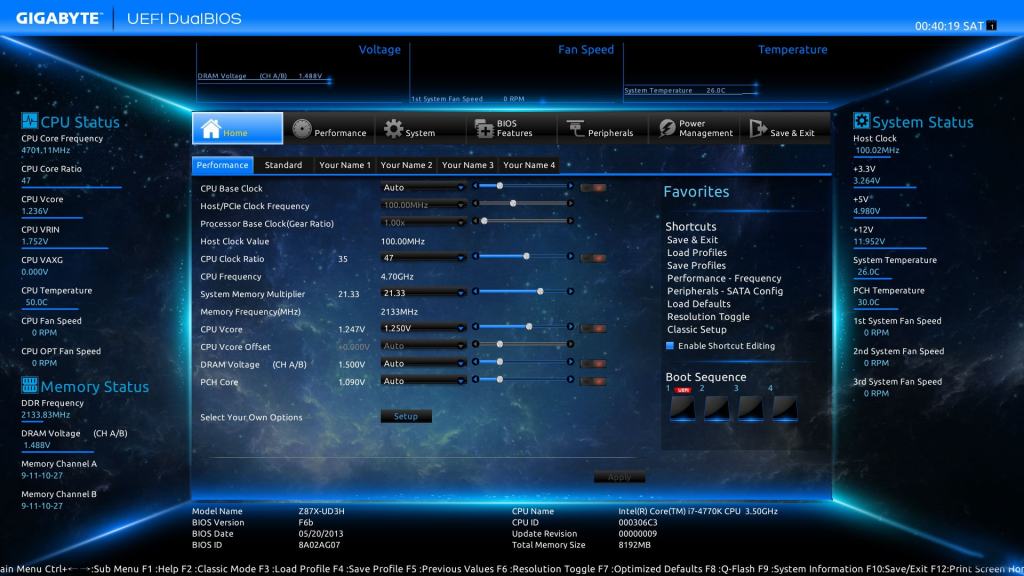
- Open the PC BIOS menu:
- You can often access this menu by pressing a key while your PC is booting, such as F1, F2, F12, or Esc.Or
- From Windows, hold the Shift key while selecting Restart. Go to Troubleshoot > Advanced Options: UEFI Firmware Settings.
- Find the Secure Boot setting, and if possible, set it to Enabled. This option is usually in either the Security tab, the Boot tab, or the Authentication tab.On some PCs, select Custom, and then load the Secure Boot keys that are built into the PC.If the PC doesn’t allow you to enable Secure Boot, try resetting the BIOS back to the factory settings.
- Save changes and exit. The PC reboots.
- If the PC isn’t able to boot after enabling Secure Boot, go back into the BIOS menus, disable Secure Boot, and try to boot the PC again.








 EireaNet